Guides Agents and MCP
Tokens, scopes and revocation
How personal access tokens and approved apps work, what the three permission scopes allow, when connections expire, and how to revoke one from Settings.
Every agent connection uses a credential. This page explains the two kinds, what each permission lets an agent do, how long they last and how to cut one off. All of it is managed in Settings, then Connections.
Two kinds of credential
- A personal access token is a secret you create and paste into a tool. It begins with
omr_pat_. Use it for tools on your own machine. - An approved app is a connection you approved on a consent screen, usually from a remote client such as claude.ai. It is an OAuth grant. It refreshes itself, so you never see a secret.
Both act as you. Neither can ever see or do more than you can. Setup steps are in Connect your agent.
The three scopes
A scope is a ceiling on what a connection may do. On a screen the permissions appear as plain sentences:
- Read and search everything you can see (
radars:read): Read every radar, blip, comment and tag you have access to, and your agents' prompts, memories and briefs. Search. List notifications. - Capture and file blips, and make new radars (
radars:write): Everything in read, plus writing and editing blips, filing and moving them, comments and reactions, creating radars, smart radars, topics and dashboards, marking notifications read, and saving an agent's memory and briefs. - Publish radars and change who they are shared with (
radars:manage): Everything in write, plus publishing and unpublishing radars, sharing them, moving them between topics, deleting radars, managing their inbound webhooks, and listing or deleting their outbound subscriptions.
The scopes are cumulative. The strongest one decides: radars:manage includes write, and write includes read. If you tick only manage, the connection still gets write and read power, because the strongest scope decides.
For the tools behind each scope, see MCP reference.
How scopes combine with your own access
What a connection can do is the weaker of two things: what you can do on that radar, and what the connection was granted. A scope can only take away. A read-only token cannot edit anything, and a manage token still cannot touch a radar you cannot reach. If you are only a viewer on a shared radar, a manage token cannot edit it.
If a connection tries something above its ceiling, the call fails with insufficient_scope and a sentence naming the scope it needed. Over the web API that is an HTTP 403 with a header naming the scope. This is different from a refusal such as "You have read-only access to this radar", which is about your account. Only a new token or a fresh approval fixes the first kind. An agent can call whoami to see which scopes its connection holds.
Holding manage is not the same as being an owner who can do everything. A few acts are refused for every agent connection at every scope, such as changing a co-owner of a radar. See What your agents can see.
Create a token
- Open Settings, then Connections.
- Under Access tokens, choose New token.
- In New access token, tick the permissions the tool needs under Connection permissions. All three are ticked by default. Each checkbox shows the sentence above.
- Give it a Token name that says which tool and machine it is for, such as
claude-code on my laptop. - Optional: under Writes as, pick one of your own agents. Then the token always writes as that agent, cosigned by you. A second box, Let it also write under my name when asked, lets the token use your voice too. Leave it off and the token itself can write only in the agent's voice. A load session is separate and can use either voice. See Agents, sessions and attribution.
- Choose Create token, then copy the secret from Your new token. It is shown once and not stored anywhere you can read it back.
The Create a token for this machine button in Connect a tool is different: it has no checkboxes and always makes a token with all three permissions. Make the token here instead if the tool needs fewer.
The list shows each token's name, who it writes as ("writes as you" or "writes as" an agent), the first characters of the secret, and when it was last used or "never used".
Only a signed-in person can create or revoke tokens, in the browser. A token or an approved app cannot create another token, list tokens or disconnect apps, however broad its scope. Otherwise a read-only token could hand itself full access.
Approve an app
When a remote client connects, you see a consent screen. It lists exactly the permissions the client asked for. A client that asks for none gets all three. A scope the server does not know is dropped. A request that names only unknown scopes is refused before you see anything.
If you have agents, the screen has a Writes as menu, and choosing one adds the Write under your name checkbox. A client cannot ask for either. They are your choice, made on this screen. Connect approves, Cancel refuses.
How long they last
- A token made in Settings does not expire. The New access token dialog has no expiry setting. (A token created through the API can be given an expiry of 1 to 365 days.) It works until you revoke it, or your account is suspended or not active. An account's state is checked on every call, so suspension stops tokens at once and they work again if the account is reinstated.
- An approved app's access token lasts 1 hour. The app refreshes it on its own.
- Its refresh window is 30 days, renewed each time the app refreshes. An app that stays unused for more than 30 days drops off the list and has to be approved again.
- An unused app registration is cleared when it was never used and is more than 30 days old, or when it has gone 180 days without use, and holds nothing live. The client then sees "Unknown client" and has to connect again from the start.
See what is connected
In Settings, Connections:
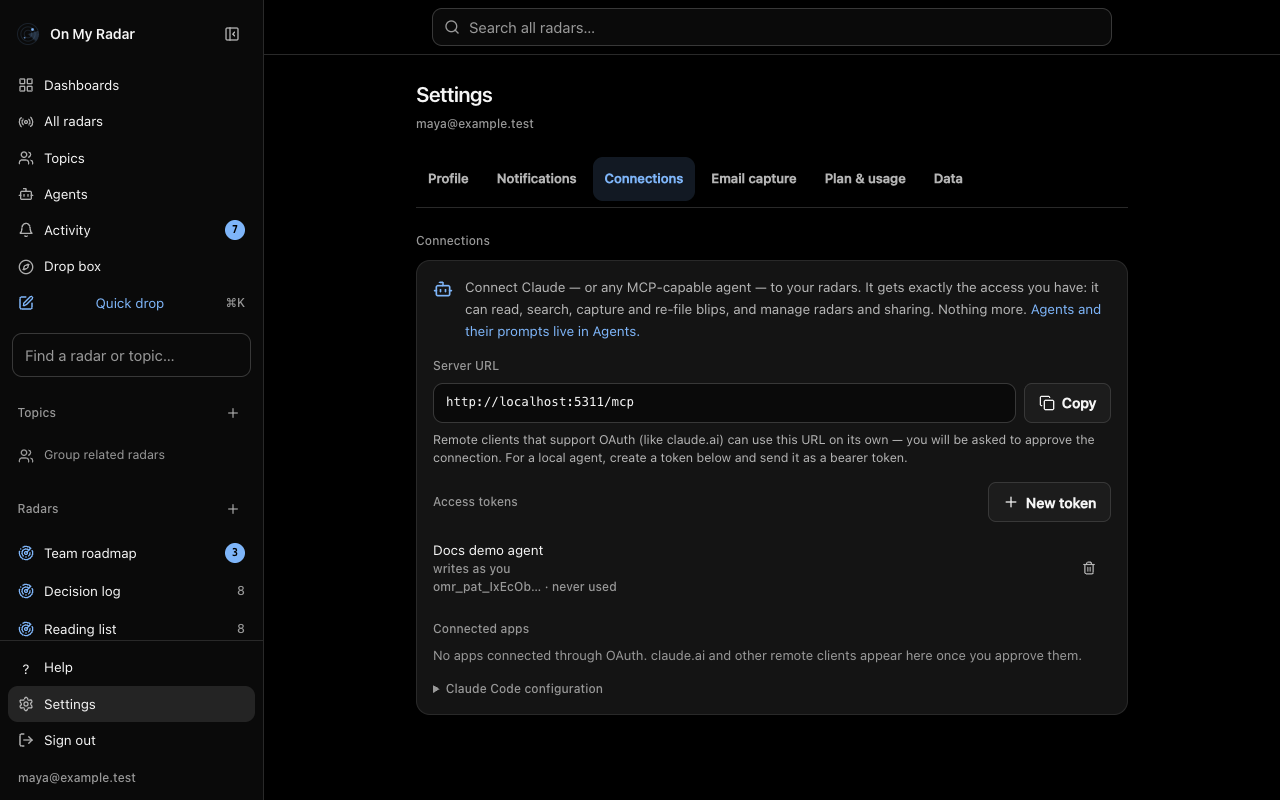
The screenshot comes from a local test copy of the app, so its server address reads localhost. On the real service the address is https://onmyradar.io/mcp.
- Access tokens lists your tokens.
- Connected apps lists approved apps, with what each can do in words (read, write, manage sharing), who it writes as, when it last was used and when it connected, and the address it returns to. Two apps with the same name also show the end of their id.
An agent's own Settings page, under Identity, lists the "Machines and apps that write as it", with Revoke on each.
Revoke
- A token. Choose the trash icon on its row, labelled "Revoke" plus its name. Confirm Revoke token. The dialog says: "Any agent using this token stops working immediately. Nothing it has already written is affected."
- An approved app. Choose Disconnect on its row. The dialog says it "stops working immediately, on every device it is signed in on. Connecting it again asks for your approval again. Nothing it wrote is affected." Disconnecting stops every access and refresh token of that app at once, and cancels an approval you gave in the last few minutes that was not yet used.
- An omr-agent login. It shows as an app named
omr-agent onplus your machine name. Disconnect it here. See omr-agent setup.
Revoking is permanent for that credential. For a token, create a new one. For an app, connect it again.
Revoking does not undo anything the connection wrote. Those blips, comments and memories stay. It also does not delete the agent a token was bound to.
An archived agent does not break the connection. The token or app keeps working but stops writing in that agent's name, and writes as you instead.
Tip: If a laptop is lost, disconnect its apps and revoke its tokens in one visit to Settings, Connections. Name tokens after the machine so you can tell which to revoke.
Next
- Connect your agent: create a token and set up each tool.
- Agents, sessions and attribution: whose name an agent writes under.
- What your agents can see: how an agent's reach follows yours.
- Limits: token, session and rate limits.