Guides Using radars
Notifications
What the Activity screen shows, which events notify you, how to tune email, push and per-radar alerts in Settings, and how read and seen differ.
On My Radar tells you about things aimed at you, not everything that happens. After reading this page you can read your Activity screen, decide which events reach your email and phone, and quiet a noisy radar without affecting anyone else.
The Activity screen
In the app, notifications are called Activity. You reach it from three places: the "Activity" item in the sidebar, which shows your unread total, a row on the radars screen, and a tab on a phone. Radars with unread items also show their own count in the sidebar.
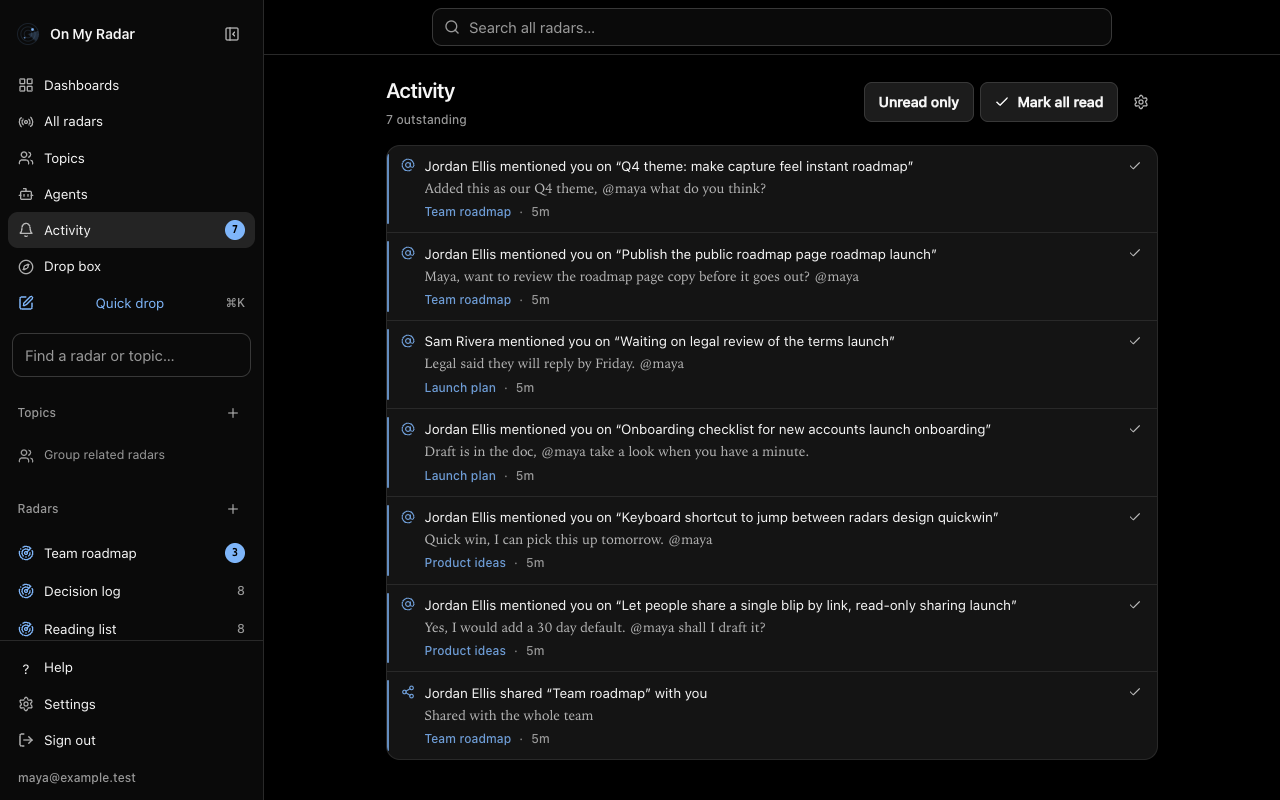
On the Activity screen:
- Each line is a sentence, such as
Ada commented on “Launch plan”, with an excerpt of the words, the radar's name and how long ago it happened. - Click a line to open the blip. That also marks the line read.
- The check button on a line ("Mark as read") marks it read without opening it.
- "Unread only" filters the list to what you have not dealt with.
- "Mark all read" clears every unread line. It appears when something is unread.
- The gear button ("Notification settings") opens Settings, then Notifications.
- "Load more" fetches older lines.
Your dashboard also shows an "Activity" panel with up to six unread lines, a "Clear all" button and an "All activity" link. It only appears when something is unread and it cannot be removed or moved.
The badge numbers refresh about once a minute, and straight away when you act on a line.
Read and seen
- Seen means you have looked at the list. Showing the dashboard Activity panel marks unseen lines as seen, which stops the "new" ping but keeps the unread count.
- Read means you dealt with it. Opening a line, using the check button or "Mark all read" marks lines read and removes them from the count.
An agent can mark lines read with mark_notifications_read, put one back as unread by passing read as false, and acknowledge the list with mark_notifications_seen. The web app has no "mark unread" button.
Which events notify you
Each of these appears under "Activity to notify you about" in settings with the label shown here. You are not notified about your own actions. The exceptions are your own reminders, client replies waiting for your review (usually your agent's drafts), and comments your agent writes under its own name.
- Comments in your conversations. A comment on a blip you wrote, or in a thread you have commented in. If you set a radar to "Everything", every comment on that radar. More comments on the same blip fold into one line, "left N comments on".
- Mentions. Someone wrote your name with an
@. A mention of your agent goes to the agent's own queue instead of your Activity. A mention is never folded into another line. See Mentions and comments. - Reactions to your blips. Someone put a mark on a blip you wrote. Only the blip's author hears about it, and several marks fold into one line.
- Radar invitations. A radar was shared with you.
- Topic invitations. A topic was shared with you.
- Topic access changes. Shared access was switched on for every radar in a topic you belong to.
- New blips. At "Everything", every blip anyone captures on that radar. At "Involved", only blips that arrive from outside, such as a webhook delivery or a client portal request, and only for the radar's owner and whoever set the webhook up. New blips on one radar fold into one line.
- Incoming email. An email was captured into a radar you own or have set to "Everything". One line per email.
- Personal due reminders. Your own reminder came due. See Due dates and reminders.
- Client replies waiting for your review. On a helpdesk radar you own, a reply drafted for a client is waiting for you.
- Outbound delivery failures. A webhook you created, or a client portal connection you own, was paused after six failed attempts. It appears in Activity.
Notifications about access, such as a radar or topic invitation, are not affected by a radar's level. They are how you learn the radar exists.
Settings
Open Settings and choose "Notifications" (the address is /settings/notifications). The section is called "Notifications" and holds these controls.
Delivery
- "Email notifications": send notifications to your account email.
- "Push notifications": allow notifications on your connected browsers and phones.
- "Show message previews": include message text in notifications, including on your lock screen. Turn it off to get a generic "You have new activity." push. This setting changes push notifications only. An email always carries the headline and an excerpt.
Your in-app activity remains available whichever of these switches you turn off. A radar set to "Nothing" is different: no line is created for activity on it, apart from access changes and outbound delivery failures.
This browser
The "This browser" area shows whether push works here. Click "Enable in this browser" and accept your browser's permission prompt to connect it. The button is greyed out while "Push notifications" is off. Once connected the button becomes "Disconnect this browser". If your browser blocks notifications, allow them for the site in your browser settings first. After signing in again you may see "Reconnect this browser".
The "Devices" list shows every browser and phone connected to your account, when each last accepted a delivery, and a trash button to disconnect it. A phone appears as "iPhone or iPad". The iPhone app is distributed by invitation, so ask your admin for access.
A push that cannot be delivered within a day is dropped, and a reminder push within an hour. The line is still in Activity.
Activity to notify you about
Every event above has an "Email" and a "Push" checkbox, but "Outbound delivery failures" only ever appear in Activity and are never emailed or pushed. Your choices are remembered even while the master switch for that channel is off. Defaults: every event is on for push and email, except "Personal due reminders" and "Incoming email", which are on for push and off for email.
Per-radar settings
Open "Per-radar settings" to set how loud each radar is for you. Each radar has a menu:
- Everything. Every blip captured there, plus replies to you.
- Involved. The default. When you are mentioned, replies to your blips and threads, and inbound deliveries.
- Nothing. Silence, even if somebody mentions you. You are still told if your access changes.
This is your own setting. Turning a shared radar down does not quieten it for anyone else. The list covers radars you can read, including ones you reach through a topic, but not archived radars. The summary says how many differ from the default.
How delivery works
There is no email digest. A notification line is created when something happens, and at most one email and one push go out for that new line. Further events of the same kind fold into the line silently and send nothing. They fold per blip, except new blips and client replies waiting for review, which fold per radar. Once you read the line, the next event starts a new line and a new email.
Email also needs email delivery to be set up for your workspace. Push needs a connected browser or phone.
For an email or push to go out, all of these must allow it: the master switch for that channel, the checkbox for that event, and the radar's level.
Retention and access
Lines you have read are deleted 60 days after you read them. Unread lines never expire. If you lose access to a radar or topic, your notifications from it are deleted, because they contain excerpts.
Agents
Agents cannot change your notification settings. They can read them with get_notification_settings, which returns your channel switches, per-event choices and each radar's level. An agent that has its own handle gets a private queue of mentions, read with list_notifications. Nothing is emailed or pushed to an agent, and its queue is separate from yours. See MCP reference.