Guides Get started
Install on your phone
Use On My Radar on a phone through the iOS TestFlight app or your phone's browser, and what to expect on Android.
You can use On My Radar on a phone in your browser today. On iPhone there is also a native app, but it is invite-only. This page says what each option gives you and what does not exist yet.
Your options
- iPhone, native app: distributed through Apple TestFlight, by invitation only. Ask your admin.
- Any phone, in the browser: the web app has a layout built for phone screens. No install is needed.
- Android: there is no Android app. Use the browser.
The iOS app
The iOS app is a native app, built separately from the web app, and it reads and writes the same account and data. It is currently available only through TestFlight.
TestFlight access is invite-only. You cannot sign up for it on your own. Ask your admin to get you an invitation. When you have it, Apple's TestFlight app installs the build for you.
Sign in with the same email address you use on the web.
The mobile web app
Open your On My Radar address in your phone's browser and sign in. Use the email code flow described in Quickstart. Request the code and enter it in the same browser. A code only works in the browser that asked for it.
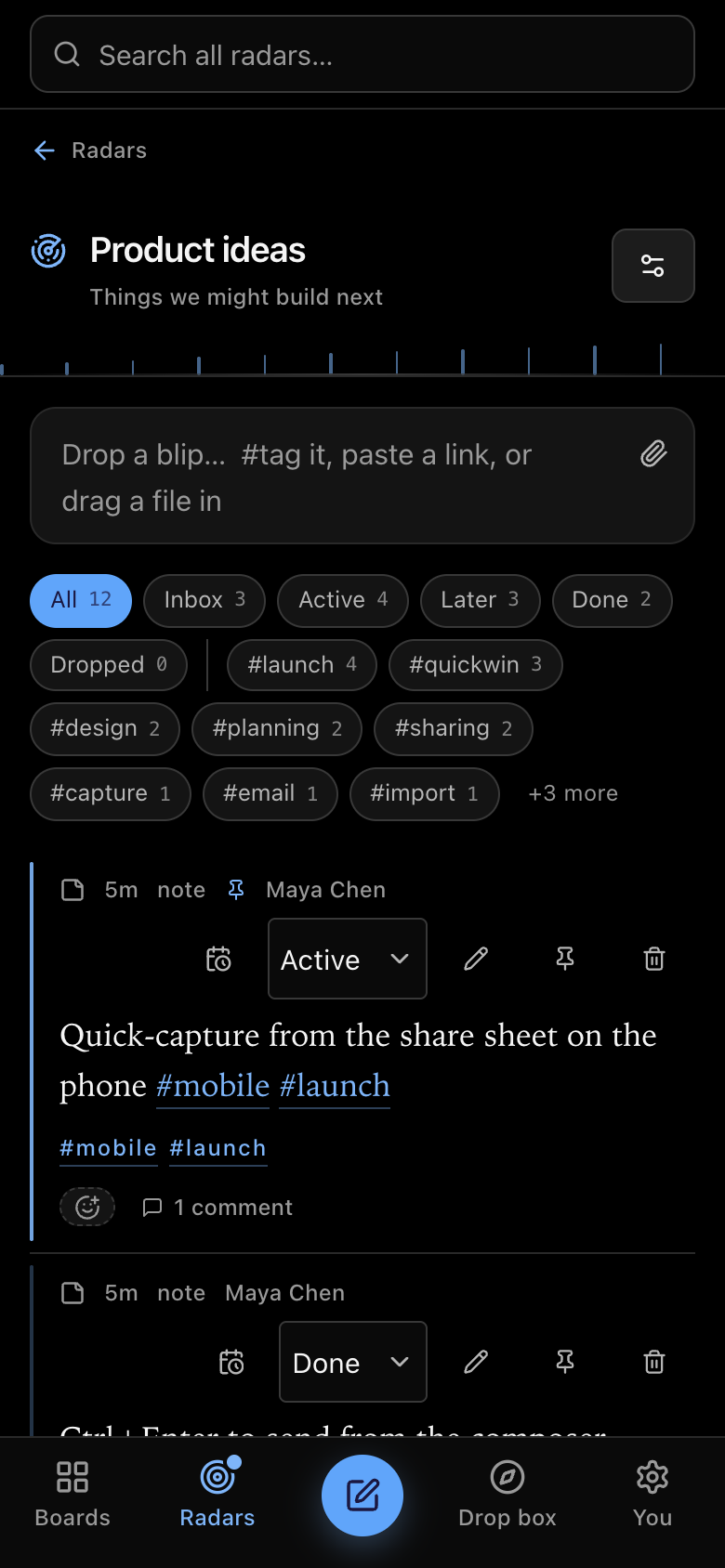
On a narrow screen the sidebar is replaced by a bar at the bottom of the screen:
- Boards: your dashboards.
- Radars: the list of your radars and topics. Use New radar and New topic here. This is also the way to Activity.
- The pen button: Quick drop. It is labelled "Quick drop" for screen readers.
- Drop box: your private catch-all radar.
- You: Settings. Each settings section opens as its own screen with a back button at the top.
Capturing on a phone
Open a radar and tap the box at the top. A phone does not move the cursor into the box on arrival, so tap it first. The Capture button appears when there is something to capture. There is no Cmd key on a phone, so use the button.
For the quickest capture, tap the pen button. Quick drop opens as a full screen titled "Drop box", with a Drop it in button at the top, so the keyboard does not cover it. What you type goes to your drop box, and an unsent draft is kept if you close it.
You can attach photos and files from a radar's capture box with the paperclip. See Capture everywhere.
Triage by swiping
On a touch screen, swipe a card sideways in a Stream, Reading list or the drop box to move it along or put it off. Swiping works where you can edit the radar. A toast offers Undo. Boards do not swipe, because the board scrolls sideways; use the lane select on the card. Decision logs do not swipe, because accepting a decision should be deliberate.
Notifications in the browser
In You, then Notifications, the "This browser" section has an Enable in this browser button. It asks your browser for permission to send notifications. It needs a browser that supports web push on a secure connection. If it does not, the page says "Notifications are not supported in this browser." Whether push is available also depends on how your installation is set up. See Notifications.
What is not available
- No installable web app package: On My Radar does not provide a web app manifest, so it is not packaged as an installable web app. Use it in the browser, or use the iOS app.
- No offline mode: the web app needs a connection to load and to capture. Its background worker handles notifications and file downloads and does not cache pages. Text you have typed but not sent is kept in your browser tab, so a reload does not lose it, unless your browser blocks site storage (a private window, for example). Attached files are not kept.
- No Android app: use the browser.
Next
- Capture everywhere: every way to get a blip in, including email.
- Quickstart: the five-minute path.
- Notifications: choose what reaches your phone.
- Connect your agent: capture through an agent.