Guides Using radars
Templates and lanes
What each radar template does, its lanes and how they map to triage state, the order blips appear in, and how to change a template or rename its lanes.
A template decides what a radar does with its blips: how they are laid out, what order they come in, and which columns they can sit in. After reading this page you can pick the right template for a radar, understand its lanes, and change either one later.
Lanes and state, once
Every blip has a state. On a template with lanes it also has a lane. The two are kept in step with each other, so you rarely set both.
State is the same in every radar. There are five values: Inbox, Active, Later, Done and Dropped. State is how you triage. It is what cross-radar views and searches such as is:done use.
Lane belongs to the radar's template. It is the column of a board or the stage of a reading list. Streams and microblogs have no lanes.
Each lane declares the state a blip takes when it lands there. That is the whole link between the two:
- Moving a blip into a lane sets its state to whatever that lane declares. Moving a card to Done on a Kanban board also takes it out of the Inbox count.
- Setting a state on its own moves the blip only when its current lane contradicts the new state. If several lanes share a state, the blip stays in the lane it is in. Kanban's In progress and Blocked are both Active, so re-confirming Active does not drag a Blocked card into In progress.
- If a template has no lane for a state, the blip keeps the lane it has.
Two more rules apply to every template:
- Pinned blips come first. Whatever the template's order is, pinned blips sit above it.
- Lane order is page order on the templates that sort by lane (Reading list, Decision log, Discussion, Architecture). The first lane listed is the first group on the page.
Note: When you read a radar through an agent, the blips arrive already in the radar's own order. A reading list arrives oldest unread first, a decision log arrives with live decisions on top. Agents should not re-sort them.
Choosing a template
When you create a radar, the New radar dialog has a Layout menu. A line under it describes the choice, and says "You can change the layout later in radar settings." The same choice lives in the radar's Settings, under the Identity & behaviour tab, in a section called Template. Both places list the same eight options:
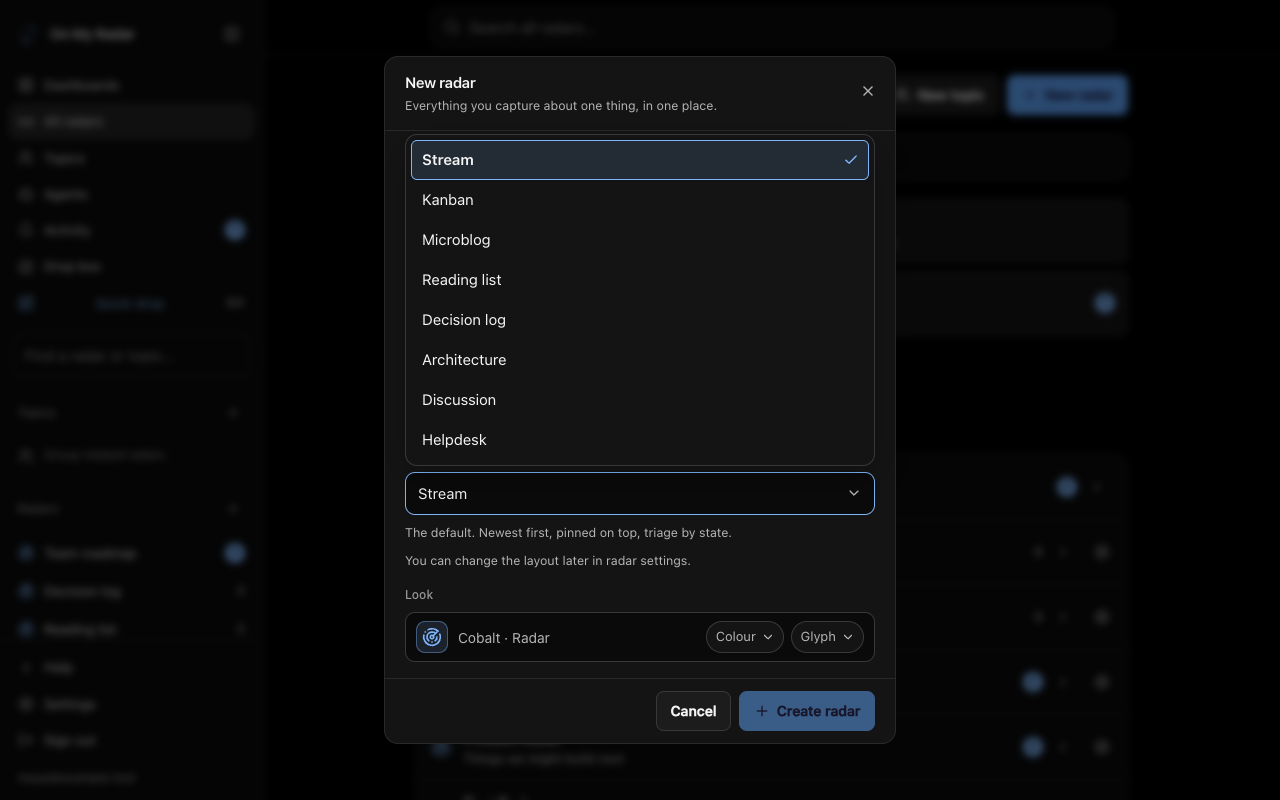
- Stream
- Kanban
- Reading list
- Microblog
- Decision log
- Discussion
- Helpdesk
- Architecture
Your drop box is the exception. It can only be a Stream or a Kanban, because the other templates decide what their blips are, and the drop box holds things you have not decided anything about yet.
Which templates your plan allows
The picker shows all eight, but the server can still refuse one. Whether it does depends on your plan, and specifically on the plan of the radar's owner:
- A plan can allow a chosen set of templates. The only templates a plan can grant are Stream, Kanban, Microblog, Reading list, Decision log and Discussion. Helpdesk and Architecture are not on that list, so on a plan that limits templates they are refused.
- The limit applies to creating a radar, creating a smart radar, switching a radar to another template, and editing a radar's lanes.
- A refusal reads: "(Template name) is not available for this radar owner’s plan. Existing radars remain available." Radars you already have keep working and keep their contents.
- A paid editor cannot unlock a template on a free owner's radar. The owner's plan decides.
- Plan limits may not be switched on for your organisation at all. To see what your plan includes, open Plans & billing. Ask your admin if you are unsure.
Changing a template later
Only someone with the owner role on the radar can change a template or its lanes. Anyone else who opens the settings page sees "You cannot change this radar".
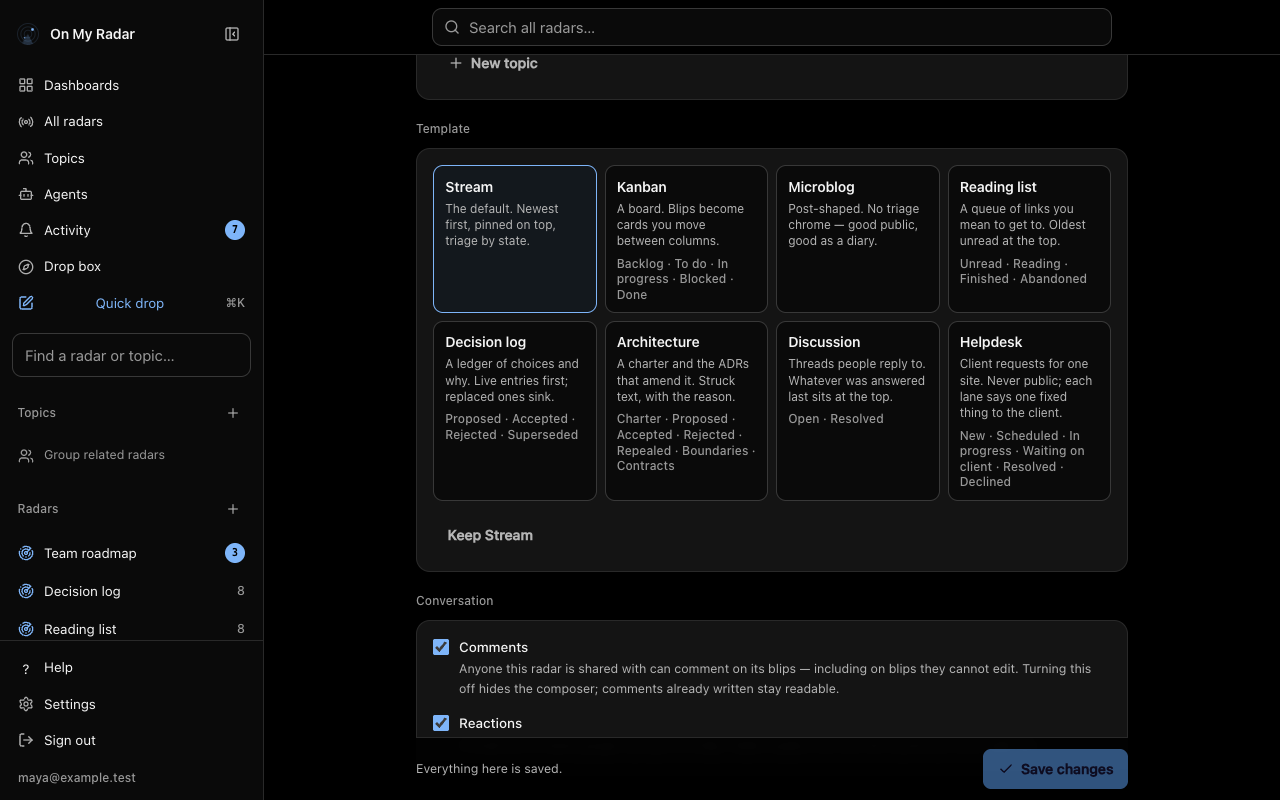
- Open the radar and choose Settings.
- On the Identity & behaviour tab, find Template and choose Change template.
- Pick a template card. Each card shows the template's name, its one-line description and its lanes.
- Choose Save changes at the bottom of the page.
Choose Keep followed by the current template's name to back out.
What happens to the blips:
- Nothing is rewritten. Each blip keeps the lane it was filed under.
- Moving a stream to a template with lanes: existing blips have no lane yet, and the page tells you they will all start in the first lane.
- On a board, a blip whose lane the new template does not have is drawn in the first lane.
- A custom lane set you saved is kept, not deleted, when you switch to a template with no lanes. It comes back if you switch back.
- A Helpdesk and an Architecture radar have extra conditions, covered in their sections below.
Changing the lanes
A radar can use its own words for the lanes. Layout, order and everything else stay with the template. A pipeline (Lead, Contacted, Proposal, Won, Lost) or meeting notes (Agenda, Discussed, Action, Parked) are both a Kanban board with different lane names.
To edit lanes in the app:
- Open Settings, then the Identity & behaviour tab, then Template.
- Choose Edit lanes. The button only appears where the radar's template accepts custom lanes.
- Rename lanes, choose what each lane's blips become (the Inbox, Active, Later, Done or Dropped state), tick Finished on lanes where work is over, reorder with the arrow buttons, remove lanes, or choose Add lane.
- Choose Save lanes.
If you have made changes and want the template's own lanes back, choose the button that reads "Use (template name)'s lanes". The settings page shows "This radar has lanes of its own rather than the template's" while a custom set is in use.
The rules, which the editor checks as you type:
- 2 to 8 lanes. One lane is not a board, and past eight a board scrolls sideways.
- Names up to 24 characters. Each lane needs a name.
- Every lane has a state. This keeps the board and the Inbox count in agreement.
- At least one lane must not be Finished. Otherwise nothing could be worked on.
- You cannot remove a lane that still holds blips. The server refuses it and tells you how many blips are in which lane. Move them out first, or keep the lane and rename it. Renaming never moves a blip.
- Templates with no lanes cannot be given any. That means Stream and Microblog.
- Smart radars have no lanes of their own. They gather blips from other radars.
- Lane order is the order of the page. On a reading list or decision log, reordering the lanes reorders the radar.
- On a custom lane set, new blips land in the first lane, unless a default lane is set. An agent can set one with
defaultStatusonset_radar_lanes. So "new cards land here" below describes the template's own lanes.
The templates that accept a custom lane set are Kanban, Reading list, Decision log and Discussion. Helpdesk and Architecture are covered below.
Agents do the same thing with the describe_templates tool, which lists every template with its lanes and the rules, and the set_radar_lanes tool, which replaces a radar's lanes (pass null to restore the template's own). set_radar_lanes needs manage access on the radar, which means the owner role and a token with the radars:manage scope. See the MCP reference.
Stream
The default. A stream is undifferentiated capture: newest first, pinned blips on top, and triage by state.
- Lanes: none. You triage with the state chips (Inbox, Active, Later, Done, Dropped).
- Order: pinned first, then newest first.
- Capture box: the placeholder reads "Drop a blip…" followed by a hint to tag it with a hashtag, paste a link, or drag a file in.
- Special: nothing. A stream is the baseline the other templates are measured against.
- Customising: a stream has no lanes to rename. To get lanes, switch to a template that has them.
- Drop box: allowed. A new drop box is a stream.
Kanban
A board. Blips become cards that you move between columns. The picker calls it Kanban.
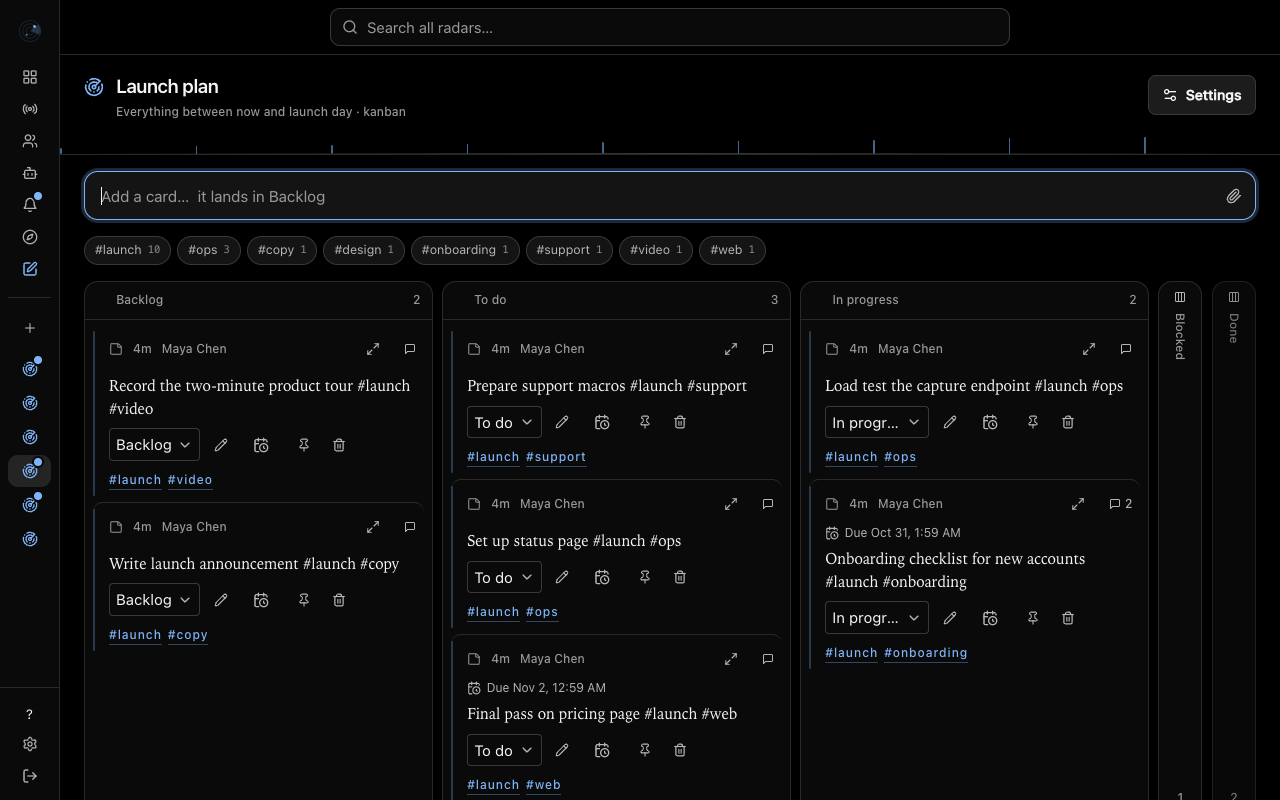
The lanes, in order, with the state each one gives a blip:
- Backlog: Inbox. New cards land here.
- To do: Later.
- In progress: Active.
- Blocked: Active.
- Done: Done. A finished lane.
What is special:
- Order: the columns do the sorting. Inside a column, pinned cards come first, then newest first.
- Moving cards: drag a card to another column, or use the lane control on the card. On a phone the board shows one lane at a time, and you tap between them.
- Settings, Behaviour: a toggle called Start with finished lanes furled collapses the finished lanes (Done, on the standard board) to a narrow rail. The rail still takes dropped cards, and one click opens it.
- Archiving: finished cards (Done or Dropped) leave the board once nothing has happened to them for the archive window. The default is 30 days, and the Archive finished blips menu in Settings changes it, including a Never option. Nothing is deleted. See Archive and dropped.
- Appearance: Kanban and Helpdesk are the two templates that cannot be themed. Their Appearance tab says the template draws its own chrome.
- Photos: a picture on a card is shown as a small thumbnail.
- Customising lanes: yes, with the Edit lanes dialog. This is the template to use for pipelines and meeting notes.
- Drop box: allowed.
Reading list
A queue of links you mean to get to. The next thing to read is the first blip on the page.
The lanes, in order:
- Unread: Inbox. New items land here.
- Reading: Active.
- Finished: Done. A finished lane.
- Abandoned: Dropped. A finished lane.
What is special:
- Queue order: pinned first, then lane order, then oldest first inside each lane. Finishing a blip makes the next one rise. A newest-first reading list turns into a stack you never reach the bottom of, so this one runs the other way on purpose.
- The link is the object. Cards lead with the source website. A blip with a link leads with its preview even if you also wrote a note around it.
- Link-first capture. On other templates a body that only contains a link becomes a link blip, and a body that mentions a link becomes a note. On a reading list, a body such as "https://example.com because Ben mentioned it" becomes a link with a note attached. The capture box says "Paste a link… add a line about why, if you like".
- Lane rail: the lanes appear as a row of filters above the list.
- Archiving: Finished and Abandoned items age out of the list after the archive window (30 days by default), the same as Kanban.
- Customising lanes: yes. The lane order is the reading order.
Microblog
Post-shaped, with no triage controls. It is good for a public page and good as a diary.
- Lanes: none.
- Order: pinned first, then newest first.
- Capture box: "What's happening?".
- Photos: a picture is the post. It is centred and given the full width of the column, instead of sitting small beside the text.
- Grouping: in Settings, under Behaviour, the Grouping menu offers "Continuous — one long timeline" or "By day — a diary, with a rule between days". Only the microblog offers it.
- Appearance: it can be themed from the Appearance tab.
- Customising lanes: not applicable, there are no lanes.
- Drop box: not allowed.
Decision log
A ledger of choices and the reasons for them. An entry is not work to finish. It is either in force or it has been replaced.
The lanes, in order:
- Proposed: Inbox. New entries land here.
- Accepted: Done.
- Rejected: Dropped. A finished lane.
- Superseded: Done. A finished lane.
What is special:
- Chronicle order: pinned first, then lane order, then newest first inside each lane. What is live sits above what was rejected or replaced, so the top of the page is the state of play.
- Ledger layout: entries are grouped under their lane, with a lane filter above.
- Replacing a decision. An entry that has not been replaced yet, and that you can edit, has a Replace decision button. It opens a dialog titled Replace decision with a field called New decision. Choose Save replacement and On My Radar creates the new entry, links it to the original, and files the original under Superseded in one step. Both entries keep their text and comments, and each shows the link to the other.
- A link stays inside one radar. You cannot record that a decision replaces one in a different radar. Moving a blip to another radar cuts the link.
- Clearing a link does not un-file the old entry. Move it yourself if you want it back.
- No archiving. Rejected and superseded entries are the point of the log, so the Archive finished blips setting does not appear.
- Customising lanes: yes, but the lane set must keep a lane with the id
superseded, because that is where replaced entries are filed. You can rename its label freely. The Edit lanes dialog tells you to keep it. - Comments and reactions: both are per-radar switches under Conversation in Settings. A decision log usually wants comments and no reactions.
Discussion
A place to talk. A blip on a discussion radar is a thread, and its comments are the replies.
The lanes, in order:
- Open: Active. New threads land here. It is Active rather than Inbox, because starting a thread is already the decision.
- Resolved: Done. A finished lane.
What is special:
- Starting vs answering. Capturing a blip starts a discussion. Commenting answers one. The capture box says "Start a discussion… what do you want to talk about?".
- Replies are open. The thread is shown open under the blip. On other templates the conversation stays folded behind a small row.
- One level of nesting. You can answer a particular reply. If you reply to a reply that is itself a reply, your answer attaches beside it, not deeper, and the reply box starts with a mention of the person you are answering.
- Activity order: pinned first, then Open before Resolved, then the thread answered most recently first. Whatever was just answered is at the top.
- Jump to newest: a long thread shows a control to jump to its newest reply.
- Resolve instead of delete. Move a thread to Resolved from its lane control. It sinks below the open threads and stays readable.
- Lane rail: the two lanes appear as filters above the list.
- Archiving: none.
- Customising lanes: yes, within the 2 to 8 rule.
Helpdesk
Client requests for one website. It is a board whose cards are requests, and each lane carries one fixed message to the client.
The lanes, in order, with the state each gives a blip and the fixed status a client is shown:
- New: Inbox. Client sees "Received".
- Scheduled: Later. Client sees "Scheduled".
- In progress: Active. Client sees "In progress".
- Waiting on client: Active. Client sees "Waiting on you".
- Resolved: Done. A finished lane. Client sees "Resolved".
- Declined: Dropped. A finished lane. Client sees "Declined".
What is special:
- A client never reads your lane names. The words a client sees come from the six fixed statuses above, so renaming a lane can never change what a client reads. A client status carries no free text, so it needs no review.
- Never public. A Helpdesk cannot be published. Its comments include internal notes about a client.
- Sharing is for collaborators only. You can share a Helpdesk with colleagues, who then read its internal notes. Never share it with a client. The share dialog says "There is no public link."
- Comments are internal by default. A comment on a Helpdesk is an internal note unless you choose "reply to client", which needs edit access. If you own the radar and write the reply yourself, it is released as written. If anyone else with edit access writes one, or an agent does, even your own agent, it is held as a draft marked "draft · awaiting review" until the owner chooses Release to client. The owner sees "no client sees this until you release it".
- Archiving: Resolved and Declined requests age out of the board after the archive window, as on Kanban.
- Appearance: a Helpdesk cannot be themed.
- Client portal tab. A Helpdesk's Settings has an extra Client portal tab for connecting it to a client portal. Connecting is a decision only a person can make, not an agent. It needs a portal to be set up under Settings, Connections, and that section only appears for administrators or people who already have one. If you cannot see it, ask your admin. Disconnecting is permanent for that connection.
Heads up: A radar must be private before it can become a Helpdesk. A published radar is refused with "Make this radar private first, then switch it."
Heads up: A radar that has ever been a Helpdesk can never be made public later, even if you switch it to another template. It keeps the internal notes it gathered.
Heads up: Switching a radar off the Helpdesk template permanently disconnects any client portal connection. A request that has a reply to the client on it, released or waiting for review, or that came from a portal, cannot be moved to another radar.
A radar that has a custom lane set of its own cannot be switched to Helpdesk. Choose "Use (template name)'s lanes" first, then switch.
Customising lanes: the Edit lanes button appears, but saving is refused. Every Helpdesk lane must name which of the six client statuses it shows, and the Edit lanes dialog and the set_radar_lanes tool have no field for that. Treat the six lanes above as fixed.
A smart radar cannot be a Helpdesk, and a Helpdesk cannot be your drop box.
Architecture
The architecture document for an application. A charter, which is a handful of pages, is amended by decision records (ADRs). The radar shows the charter with amendments struck through and linked to the decision that made them.
The lanes, in order:
- Charter: Active. The pages of the document.
- Proposed: Inbox. New decisions land here.
- Accepted: Done.
- Rejected: Dropped. A finished lane.
- Repealed: Done. A finished lane.
- Boundaries: Active. Parts of the application, or outside systems.
- Contracts: Active. A seam between exactly two boundaries.
What is special:
- Three tabs: Charter, Map and Matrix. The Map draws boundaries and the contracts between them. The Matrix is a grid of boundaries against boundaries, with an empty cell marked "No contract". Charter is the default unless the radar has boundaries and no charter pages. On a phone the Map becomes a list of boundaries with an Open map button for the drawing.
- As written or as amended. The Charter tab has a toggle for As written and As amended. As amended shows accepted replacements in the text.
- Amending the charter. If you can edit the radar, switch to As written, then select text in a page. An Amend… bar appears. In As amended the bar reads Show as written to amend instead. Choosing Amend… opens a dialog titled Propose an amendment with the quote filled in. Fill in the title and the replacement text, and the reason, then choose Propose ADR. The decision stays Proposed, and the quoted text is highlighted, until someone decides it.
- Deciding. On a Proposed decision, people with write access see Accept and Reject. An accepted decision shows Repeal. The only legal moves are Proposed to Accepted or Rejected, and Accepted to Repealed. Nothing is created straight into a decided lane.
- How an amendment reads. Accepted: the quoted text is struck through with a link to the decision. Proposed: highlighted. Rejected and repealed: plain text. The quoted text is never deleted.
- A quote is one line of plain text. If the same text appears more than once on a page, the app uses the occurrence you selected. It refuses, and asks you to select again, when the page changed since you selected it. An agent that quotes text appearing more than once, without saying which, is refused as ambiguous.
- Replacing an accepted decision. A new decision can supersede an accepted one. The old decision is only repealed when the new one is accepted.
- Boundaries and contracts are written by agents. The app has no screen for editing them. An agent writes them with the
upsert_boundaryandupsert_contracttools and reads them withread_architectureandtrace. New blips you capture on this radar land in Proposed. The capture box does not create charter pages, boundaries or contracts, and nothing can be moved into those lanes by hand. - Chronicle order: pinned first, then lane order, then newest first.
- No custom lanes. The lanes are part of what the template means, and Edit lanes does not appear.
- Archiving: none.
- Public: a public Architecture radar is drawn as a plain stream. The charter is only read through the signed-in app.
Heads up: Once an Architecture radar has boundaries, contracts or amendments, you cannot switch it to another template. The app refuses with "This radar has boundaries, contracts or amendments, which only the Architecture template can show. Delete them first, or keep the template." A boundary that still has contracts, or a decision that a charter page quotes, cannot be deleted or moved either.
Next
- Topics to group radars
- Dashboards to see several radars on one screen
- Archive and dropped for how finished blips age out
- Search syntax to filter by state, tag or
template: