Guides Using radars
Dashboards
Build personal dashboard tabs with radar panels and live queries across radars, arrange them on the grid, and know the query syntax and limits.
A dashboard is a tab that shows several radars, or live searches across radars, side by side. After reading this page you can build your own working view, arrange it, and write the queries behind it.
What a dashboard is
Dashboards is the home screen of the app. Open Dashboards in the sidebar.
- Personal. A dashboard belongs to one person. There is no sharing control for dashboards, and other people do not see yours. A teammate who wants the same view builds their own.
- Tabs. Each tab is a working context, such as this quarter, client work, or the house. Each tab button shows how many widgets it holds.
- Views, not copies. A widget never copies blips or gives anyone access to anything. It shows what you can already read, and it updates as access changes.
- Activity. Above the tabs, a panel called Activity shows your unread notifications. It belongs to the screen, not to a tab, and cannot be removed. It appears only while you have unread notifications.
If a radar on a tab stops being shared with you, its panel reads "This radar is no longer shared with you. Remove it from the tab." A live query stops including that radar's blips.
Create a dashboard
- Open Dashboards.
- Choose the New tab button (the plus sign beside the tabs). On a screen with no tabs yet, the empty state has a New tab button too.
- In the New tab dialog, give it a name. It suggests "Tab 2" and so on, ready to replace. The dialog describes a tab as "A working context — this quarter, client work, the house."
- Choose Create tab. The new tab opens, empty.
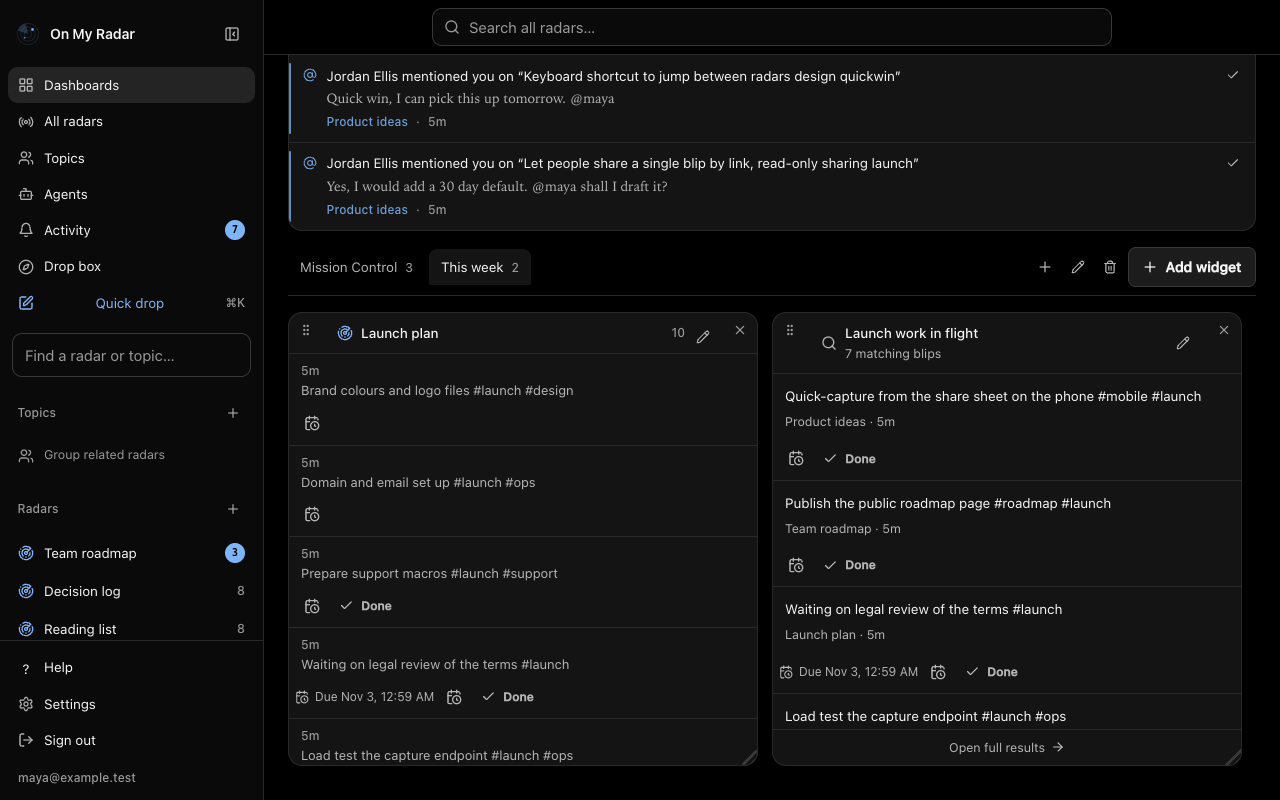
To rename a tab, choose the pencil, labelled Rename tab. To delete one, choose the trash icon, Delete tab. Deleting a tab keeps every radar that was on it, and only removes the layout. Tab names can be up to 120 characters.
Add a widget
Choose Add widget. The dialog is titled Add widget, with the line "A radar shows one collection. A live query brings matching blips together across radars." Pick the source:
A radar
Choose Radar, search for a radar under Find a radar, and choose it. The panel shows the first 12 blips of that radar, in the radar's own order (see Templates and lanes), with a link to open the radar.
- In the app, a radar can be added once to a tab. It can be on several tabs.
- Radars already on the tab are left out of the list. Use a live query to see another view of them.
A live query
Choose Live query and fill in:
- Widget name: required, up to 120 characters.
- Query: the search to run. The box suggests radar, topic and person names as you type. Under it are shortcut buttons for
is:inbox,tag:readingandafter:7d, and a Query examples and filters section you can open. - Display: how to show the matches (see below).
- Hide when empty: a checkbox on every widget. See below.
A Preview panel shows how the query is read, how many blips match across how many radars you can read, and the results. Add widget stays disabled until the query checks out. If a filter matches nothing, for example a radar name that does not exist, the dialog says "Fix the query first: a filter in it matches nothing." It never saves a query that would quietly return nothing.
To change a widget later, use its pencil button, labelled with the widget's name, then Save widget.
Query syntax
A live query uses the same filters as search. Words search the title, tags, link and body of every blip you can read, weighted in that order. A quoted phrase matches exactly. Queries can be up to 500 characters.
Examples:
-in:"Reads" is:inbox
not:tag:archived tag:bug|techdebt
topic:"Roving Studio" is:active
topic:"Roving Studio" stale:30d
has:link touched:7d
The filters:
in:"Design notes": only that radar, by name, slug or id.topic:"Product work": the radars currently in a topic you can read. A radar filed into the topic later flows into the view.from:lucas: only what that person captured.tag:bug: blips carrying the tag.is:active: triage state (inbox, active, later, done, dropped), pinned or unpinned, archived or live.has:link: has a link. Usehas:attachmentfor blips with files andhas:commentfor blips with comments.kind:essay: what sort of blip it is.template:helpdesk: only radars on that template, across every topic.touched:7d: edited or received a new comment since that date or span.stale:30d: no edits or new comments since that date or span.after:7dandbefore:2026-01-01: captured since or before a date or span. Dates are UTC.
Rules worth knowing:
- Put quotes around names with spaces.
- A pipe between values means either.
tag:bug|techdebtmatches blips with either tag. -tag:bugornot:tag:bugexcludes a filter. Negating an alternative group, as in-tag:archived|noise, excludes everything in the group.- Repeated
in:,topic:,from:,kind:,template:and stateis:filters add together. Repeatedtag:andhas:filters must all match. Different filters narrow each other. - "Touched" and "stale" count edits and new comments. Reactions and edits to existing comments do not count.
- An unknown or inaccessible radar, topic or person name is reported as a problem, even inside an exclusion. It is never silently dropped.
- Results only ever include radars you can read.
The full grammar is on Search syntax.
Displays
A live query can show its matches four ways.
- List of blips. Up to 50 blips. Choose how many with Blips to show (6, 12, 24 or 50). Group by radar puts the blips under their radar's name, with the real total for each group, such as "Showing 12 of 40".
- Count. One exact number for the whole query, in a small tile. A count tile can be as small as 2 columns by 2 rows, so up to six fit across.
- Lane distribution. How many matching blips sit in each lane, using each radar's own lane names. It includes empty lanes in the matching radars. See Templates and lanes.
- Capture over time. A chart of how many blips were captured per day, over Past 7 days, Past 30 days or Past 90 days (UTC days, including today, with zero days filled in). A collapsed Daily counts table under the chart lists the daily numbers.
Totals always count the full query, not just the blips loaded into the panel.
Hide when empty
The Hide when empty checkbox hides a widget when its query succeeds and returns nothing. For a capture chart, that means no captures in the chosen window. A widget with an error, still loading, or without permission stays visible. Hidden widgets keep refreshing and come back when something matches. They are never deleted.
When any are hidden, a Show hidden widgets button appears above the grid with the count. Choose it to see and manage them, and Hide empty widgets to hide them again.
Arrange the grid
The grid is 12 columns wide. Panels cannot overlap. A new radar or list panel starts 4 columns wide and 10 rows tall, and a count tile 2 by 2.
On a wide screen:
- Move a panel by dragging the grip in its top-left corner.
- Resize it by dragging the diagonal handle in its bottom-right corner.
- If some widgets are hidden, your first drag shows them instead of moving anything. Drag again once they are visible.
Click the grip instead of dragging, and you open Arrange widget, which works with the keyboard and on any screen:
- Move up and Move down shift the panel by its own height.
- Column and Row set the exact position.
- Width (in "of 12 columns") and Height (in rows) set the size.
- Apply layout saves. Other panels move aside to make room. If there is no room, the app says so.
Minimum size is 3 columns by 4 rows, or 2 by 2 for a count tile. On a phone or any window narrower than 900 pixels, panels stack in row order and cannot be dragged. Use Arrange widget there. The dialog notes that columns and width apply only on larger screens.
To remove a panel, choose Remove from this tab (the X in its corner). This removes the panel only. The radar and its blips are untouched.
Working from a panel
Where you can write to a radar, each blip row in a panel has quick actions:
- A forward button that moves the blip on. On a template with lanes it uses the lane's own word, for example Finished on a reading list. Where a template has no triage to show, the button is not there.
- File, only on blips that sit in your Drop box, which moves the blip to another radar you can write to. A message says "Filed to" the radar's name, with an Undo.
- Dragging a Drop box blip onto a radar panel files it there.
- A due-date control.
Limits
- A tab holds up to 60 widgets, and up to 12 of them can be live queries. When you reach 12, the dialog says "This dashboard has the maximum of 12 live query widgets. You can still add radar widgets."
- Queries are up to 500 characters. A list shows up to 50 blips.
- Widgets refresh every 60 seconds while the page is visible.
- Lists and charts need at least 3 columns by 4 rows. Count tiles need at least 2 by 2.
- Layout saves are checked against the version you were looking at. If someone changed the tab meanwhile, for example an agent, the save is refused with "This dashboard changed since you read it" and you reload.
Working with an agent
Agents can build your tabs using your own access. Reading dashboards and results needs radars:read. Creating, changing and deleting tabs needs radars:write. See Tokens, scopes and revocation.
list_dashboardsreturns your tabs with complete layouts and a revision number.preview_dashboard_querychecks a query and shows its problems before it is saved.create_dashboardmakes an empty tab, thenupdate_dashboardfills it.read_dashboard_widgetruns a saved query with your current access.delete_dashboardremoves a tab and its layout. Radars and blips remain.
For update_dashboard, use append to add widgets without working out positions, or operations to add, remove, move or update individual widgets in one all-or-nothing batch. Both merge into the current layout, so panels you did not mention stay. Only a full widgets replacement overwrites the layout, and it must include every panel you want to keep and the revision from list_dashboards. An agent's defaults for new panels are 6 columns by 8 rows, or 2 by 2 for a count tile. Choose only one of append, operations or widgets per update.
See the MCP reference for the full tool list.
Next
- Search syntax for the complete filter grammar
- Templates and lanes to understand what the Lane distribution view counts
- Topics to query a whole group of radars with
topic: - Due dates and reminders