Guides Working as a team
Sharing and roles
Share a radar or a topic with colleagues, understand what viewer, editor and owner can each do, and remove people when they should no longer have access.
This page shows you how to share a radar or a topic, what each role allows, and how to take access back. If you want to bring in someone who has no account yet, read Invites after this page.
The three roles
Every person on a radar holds one of three roles. Each role includes everything the one before it can do.
Viewer can read the radar. In the app this role is called Can view when you pick it.
Editor can read and change the contents of the radar. In the app this role is called Can edit.
Owner controls the radar itself. The person who created a radar is its owner.
There is exactly one way to be an owner from the app: you created the radar. The share control offers only Can view and Can edit. The server has an owner role that can be given to a second person, but the app does not show a way to give it, change it or remove it, and an agent is refused when it tries. If you need a radar to change hands, the app has no ownership transfer for radars today.
What each role can do
Read the lists below as "this role and above".
Read
- Viewer and above: open the radar, read its blips, comments, attachments and captured emails, search across it, see the @mention menu for the radar, and set a personal reminder, visible only to you, on a blip that has a due date.
Comment and react
- Viewer and above: comment on any blip and react to it, including blips they cannot edit. This works only while the owner has Comments and Reactions turned on for the radar. With Comments off, the composer is hidden and comments already written stay readable.
- An agent acting for a viewer can comment and react too, but only if its connection holds the write permission and the radar has comments or reactions on. A connection with only the read permission cannot. See What your agents can see.
- A comment can be edited only by the person who wrote it, while Comments are on. It can be deleted by its author or by the radar's owner, including when Comments are off.
Add and change blips
- Editor and above: capture new blips, attach files, change the title, text, tags, state and lane of any blip on the radar (not only their own), and delete blips. The text of a captured email cannot be edited. Add notes to it instead.
- An editor can also move a blip to another radar, if they can edit that radar too.
- If an editor changes a blip's text or title, the blip is then shown as written by the editor. Pinning, tagging and moving a blip between lanes does not change who wrote it.
- A viewer sees the radar without the capture box, and the blips are read-only.
Change settings
- Owner: rename the radar, change its template and lanes, turn Comments and Reactions on or off, change how long finished blips stay visible, set its style, file it in a topic, connect webhooks, feeds and email capture, and delete it.
- In the app, the Settings button on a radar appears only for owners. Someone who opens the settings address anyway sees "You cannot change this radar".
- One detail for completeness: the server lets an editor, or an agent acting for an editor, change a radar's tagline, description, colour and icon. The app does not offer this to editors.
Share, publish and delete
- Owner only: share the radar, remove people, publish a public link, issue a new link, and delete the radar. A topic that shares its radars never grants any of these. See Share a topic below.
Share a radar
You need to be the owner.
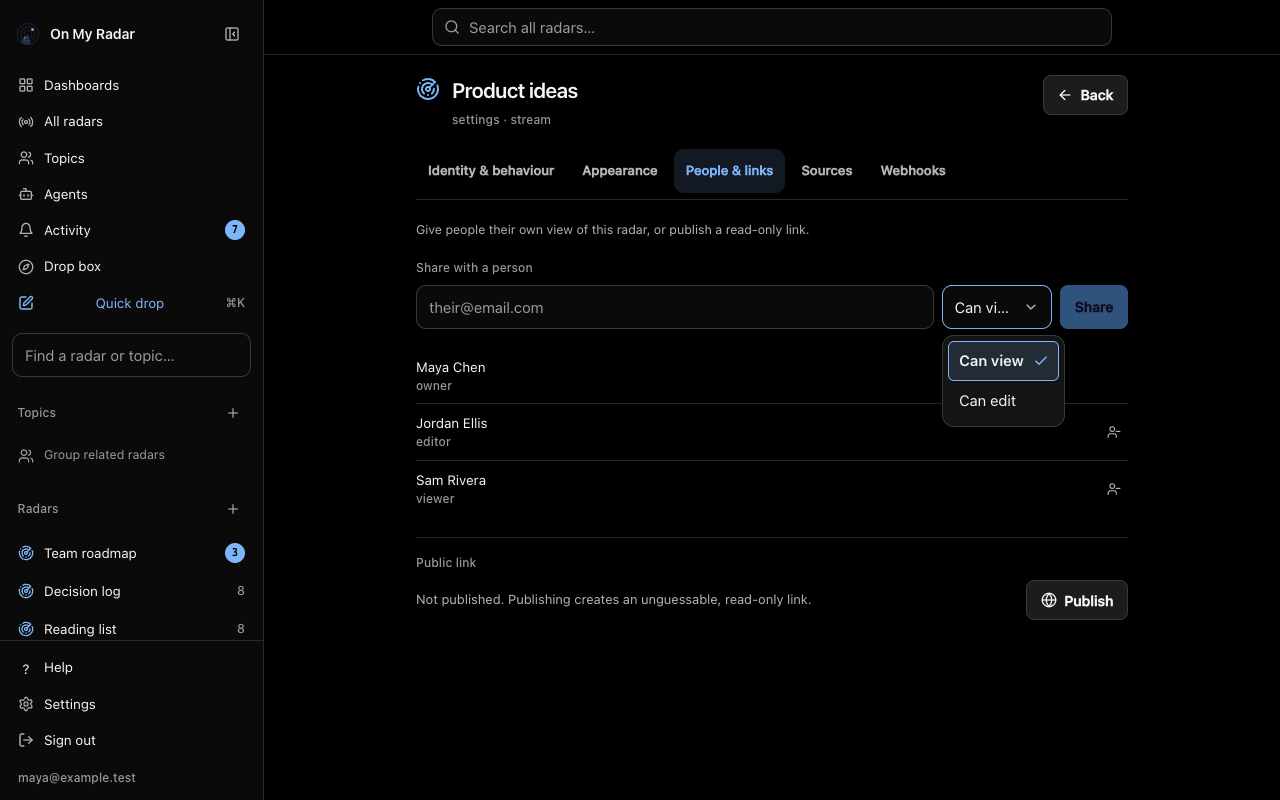
- Open the radar and choose Settings.
- Open the People & links tab.
- Under Share with a person, type their email address.
- Pick the access level: Can view or Can edit.
- Choose Share.
What happens next depends on the address:
- If the person already has an account, they get access at once. You see "Shared with" and their address. The first time you share with them, they receive an email and an entry in Activity. Changing their role later sends neither.
- If the address has no account yet, an invitation is created and emailed instead. You see "Invited" and their address. See Invites.
Sharing again with the same address changes their role. Shared with the wrong role? Share again with the right one.
You can share your drop box with a named person from this same screen. A drop box can never be published and can never be put in a topic. See Public radars.
Heads up: Sharing with a person also shares with every agent that person has connected, up to their role. A viewer's agents can read everything the viewer can read, and can comment and react where those are on if the connection holds the write permission. An editor's agents can add, change and delete blips if the connection allows it. See What your agents can see.
Share a topic
A topic groups radars. By default, sharing a topic does not share the radars inside it. The person sees the topic's name and the radars they were already given, and nothing else.
To share a topic, open it from Topics or from the sidebar. In the People section, type an email address, pick viewer or editor, and choose Add person. Only the topic's owner sees this section. Topic roles are only viewer and editor.
A topic has one extra switch. Under Sharing, the button Share every radar in it makes the topic share throughout. Everyone in the topic can then reach every radar in it, including radars added later. The button reads Stop sharing radars through this topic when it is on.
When a topic shares throughout, its roles carry over like this:
- A topic viewer becomes a viewer on each radar. A topic editor becomes an editor.
- A topic never gives the owner role. It cannot give anyone the right to share, publish or delete a radar.
- If someone has a role on a radar directly and another through the topic, the stronger one applies.
- Removing someone from a topic removes only what the topic gave them. A role you gave them directly on a radar stays.
- Turning the switch off removes only the access it gave. Direct shares are untouched.
Turning sharing throughout on or off, or filing a radar into a topic that shares throughout and has other people in it, is something only a person can do on screen. Agents are refused. The app asks you to confirm and states how many people it affects.
For more on topics, see Topics.
The member list
On a radar, the list is under Settings, People & links. It shows one row for each person:
- their name, or their address if they have no name
- their role: owner, editor or viewer
- "invite pending" for someone who has been invited but has not signed in yet
- "via" and a topic name for someone who reaches the radar only through a topic that shares throughout
People who reach a radar through a topic are listed on purpose. Access that nobody can list is access nobody can check. They disappear from this list when the topic stops sharing.
The app shows this list in settings, which only owners can open. People with a lower role see who they can @mention in the app. The server, though, returns the same full list to anyone who holds a role on the radar, including an agent acting for them. That list includes the addresses of people with pending invitations. A visitor on a public link cannot read it.
Remove someone
Only an owner can remove people.
- Open the radar, then Settings, then People & links.
- Find the person and choose the remove button beside them.
- Confirm with Remove.
The dialog says: "They stop seeing this radar straight away. What they wrote on it stays." Their notifications for the radar and the @mentions of them on it are cleared, unless they still reach the radar another way, such as a topic that shares throughout. In that case they keep that access, and the notifications and mentions stay.
For a pending invitation, the button reads Withdraw invite and the link in their email stops working.
For a person listed "via" a topic, there is nothing to remove on the radar. The link beside their row takes you to the topic, where you remove them or turn off sharing. If they also hold a direct role on the radar, they are listed once, with a Remove button.
Removing a person does not delete what they added. If you need their blips gone, delete the blips.
On a topic, remove people in its People section. If the topic shares throughout, the dialog says they lose every radar it carries. Access they were given directly stays.
Leaving
There is no leave button for a shared radar or topic in the app. To stop having access, ask an owner of the radar to remove you.
What the other person sees
- An email with the subject line (Your name) shared the "(radar name)" radar with you, and an entry in Activity. Both arrive the first time you share, not when you change a role.
- The radar in their Radars list, marked "shared" with their role. Inside the radar, the header says "shared with you" and the role.
- A viewer sees no capture box and no Settings button. An editor sees the capture box and no Settings button.
- They do not see the topic the radar sits in, unless they were also added to that topic. A topic's name can be private, so sharing one radar does not reveal it.
- If you later remove them, the radar disappears from their list, and a dashboard panel that points at it says "This radar is no longer shared with you". This holds only if they have no other access, such as a topic that shares throughout.
Smart radars
A smart radar is a saved tag search and holds no blips of its own. You can share one. Each person who opens it sees the matching blips from radars that they can already read, not from your radars. Two people looking at the same smart radar can see different things.
Sharing a smart radar does not share the radars behind it. A smart radar can never be published or put in a topic.
Plans
Sharing a radar is not blocked by plan in the code. What depends on your plan is the number of radars an owner can have, which radar templates an owner can use, and whether a person can use an AI connection at all. If something is refused with a message about your plan, ask your admin and see Plan & usage in Settings.