Guides Agents and MCP
Connect your agent
Connect Claude, Claude Code, Codex, Cursor or any MCP client to your radars, choose between sign-in and a token, and check that it works.
By the end of this page your AI tool will be connected to On My Radar, acting as you, and you will know how to check that it is. An agent sees exactly the radars you see and can do at most what you can do.
Before you start
On My Radar's agent connection is an MCP server. On the hosted service its address is:
https://onmyradar.io/mcpOpen Settings, then Connections. The Server URL field there shows the exact address for your installation, with a copy button. Use that value if it differs.
Connecting depends on two things you do not control from this screen:
- Your plan. Whether your plan includes AI connections (MCP) depends on your plan. If it does not, the Connect dialog on the Agents screen says "Your current plan does not include AI connections (MCP)" and links to Plans & billing. Ask your admin.
- Your installation. The operator can turn MCP off. The same dialog then says "AI connections (MCP) are turned off for this site."
Pick a way to sign in
There are two ways for a tool to prove it is you.
Sign in and approve (OAuth). You give the tool the URL. It sends you to On My Radar, where you see a consent screen and press Connect. There is nothing to copy or store. This suits tools that run on someone else's servers, such as claude.ai.
A personal access token. You create a token in Settings and give it to the tool as a bearer token. This suits tools on your own machine: Claude Code, Codex, Cursor. A token begins with omr_pat_ and is shown once.
If a tool's sign-in is refused with a message like "redirect_uri host ... is not allowed on this server", the operator has not allowed that tool's sign-in address. Use a token instead. The hosted sign-in accepts only https addresses and local loopback addresses.
Create a token
- Open Settings, then Connections.
- Under Access tokens, choose New token.
- In New access token, name the token after the tool and machine, for example
claude-code on my laptop. You will use the name later to find what to revoke. - Leave Connection permissions as it is, or untick what the tool does not need. See Tokens, scopes and revocation.
- Optional: under Writes as, pick one of your agents if this machine should always write as that agent. The default is You.
- Choose Create token. The dialog Your new token shows the secret once. Copy it now. It is not shown again.
Put the token in your shell profile, never in a file inside a project:
export OMR_TOKEN=omr_pat_…You can also start from an agent. Open Agents, choose Connect a tool, pick the agent and the tool, then Continue setup. Step 1 of that dialog has Set up the connection manually, and where the snippet needs a token it offers Create a token for this machine. For an agent you own, that token is bound to the agent, so it writes as that agent, cosigned by you. For an agent shared with you it is an ordinary token that writes as you. Either way the dialog has no permission checkboxes. The token always carries all three permissions, including publish and share.
Claude (claude.ai and Desktop)
- In Claude, open Settings, then Connectors, and choose Add custom connector.
- Paste the server URL and sign in.
- On the On My Radar screen "Connect Claude to your radars?", read the list. Each line is a permission, for example "Read and search everything you can see". The screen also says "Never more than you can do yourself", with your email.
- If you have at least one agent that is not archived, a Writes as menu appears. You is the default. Pick an agent to have this connection write as that agent, cosigned by you. After you pick one, the checkbox Write under your name lets the connection also write as you when asked.
- Choose Connect. Cancel sends the tool back with a refusal.
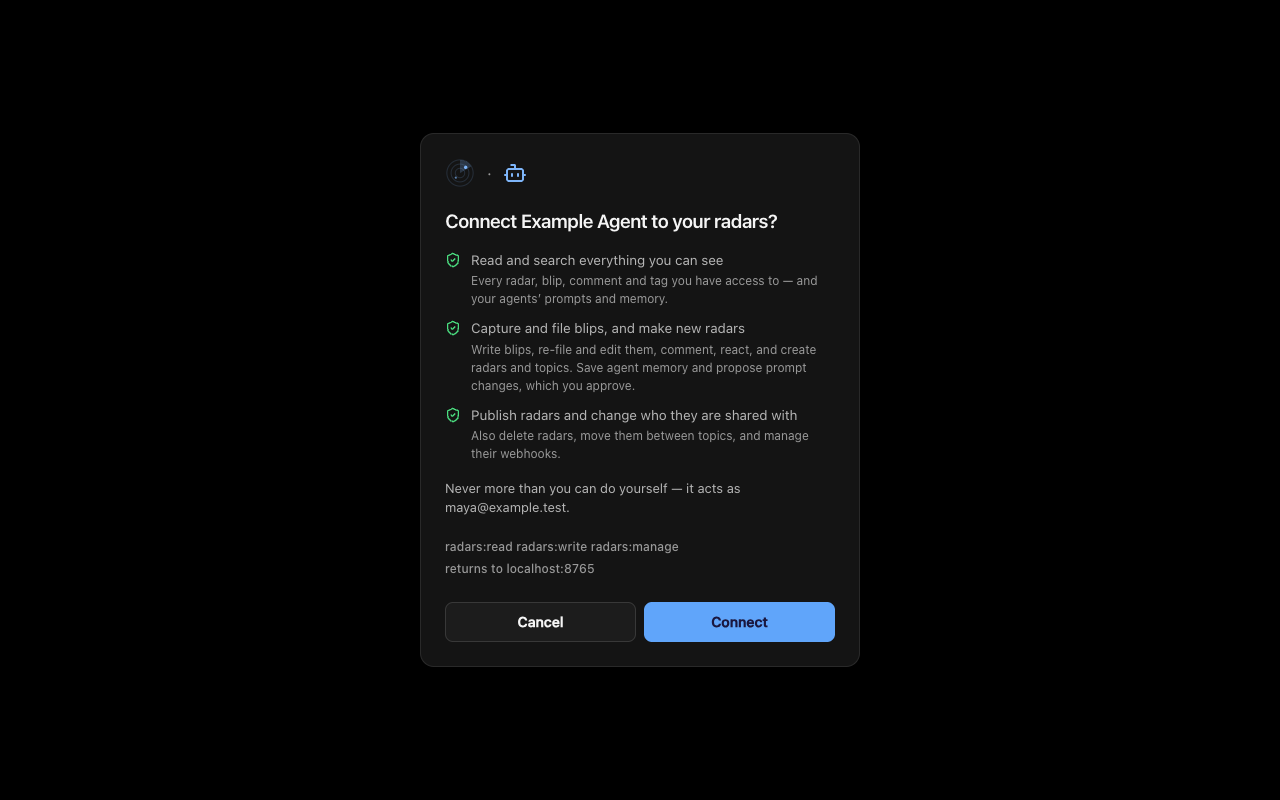
The connection then appears under Connected apps in Settings, Connections. To use a particular agent in one chat instead of for the whole connection, load it in that chat. See Agents, sessions and attribution.
Note: The app lists this tool as "Claude (claude.ai & Desktop)" and shows one set of steps for it: Settings, Connectors, Add custom connector, paste the URL, sign in. The steps above are those. Menu names inside Claude can change, so if you do not see them, look for where Claude adds a custom connector.
Claude Code
With a token in OMR_TOKEN, run this once on the machine:
claude mcp add --transport http onmyradar https://onmyradar.io/mcp \
  --header "Authorization: Bearer $OMR_TOKEN"
Then start a new Claude Code session. Settings, Connections has the same command under Claude Code configuration, written with <your token> where the token goes.
If you want a workspace to start as one of your agents automatically, use the omr plugin instead. It signs in through the browser and needs no token. See omr-agent setup.
Codex
Add this to ~/.codex/config.toml, with OMR_TOKEN set in your environment:
[mcp_servers.onmyradar]
url = "https://onmyradar.io/mcp"
bearer_token_env_var = "OMR_TOKEN"
default_tools_approval_mode = "approve"
Heads up:
default_tools_approval_mode = "approve"lets Codex call On My Radar without asking each time. That includes write tools: capturing, editing and deleting blips, and an agent's memory. Remove the line if you would rather approve each call. Without an approval mode, Codex refuses MCP calls whenever it cannot stop to ask, for example incodex exec.
The token is read from the environment, so it is not written into the file. Codex can also run with the omr hooks. See omr-agent setup.
Cursor
Merge this into ~/.cursor/mcp.json, with OMR_TOKEN set in your environment:
{
  "mcpServers": {
    "onmyradar": {
      "url": "https://onmyradar.io/mcp",
      "headers": {
        "Authorization": "Bearer ${env:OMR_TOKEN}"
      }
    }
  }
}
Restart Cursor, or reload its MCP servers, so it reads the file.
Other tools
The Connect dialog also covers four more tools. Each shows its own snippet; the notes here say where it goes.
- Copilot (VS Code): a
.vscode/mcp.jsonfile. VS Code asks for the token once and keeps it out of the file. - Gemini CLI: a
gemini mcp addcommand, run once, withOMR_TOKENset. - Windsurf:
~/.config/devin/mcp_config.json. This file is global to the machine. - Zed:
~/.config/zed/settings.json, with no Authorization header. With no header Zed signs you in with OAuth.
Any other MCP client
Add On My Radar as a remote MCP server of type streamable HTTP, with the server URL. Then choose one:
- If the client supports OAuth, give it the URL only. An unauthenticated request gets a
401that points the client to the sign-in details, which is how it finds the rest. - Otherwise send the header
Authorization: Bearer omr_pat_….
The server answers POST /mcp only. A GET or DELETE gets 405, because there is no stream to open and no session to resume. A client that treats that 405 as a failure and retries will never finish connecting. The older HTTP+SSE transport is not provided.
Tip: If your plan does not include AI connections, calls fail with "Your plan does not include an AI connection. Review Plans & billing." That is a plan message, not a token problem. If the operator turned MCP off, the endpoint answers "MCP is disabled on this server".
Check that it works
- Start a new session in the tool, so it reloads its connections.
- Ask: "Call whoami." It should return your name and email and the scopes this connection holds.
whoamialso shows an agent when the connection itself is bound to one. - Ask: "List my radars." You should see what you see in the app.
To check a particular agent, use Agents, Connect a tool. Step 3, Verify the connection, has a Check connection button. Then start a new session in the tool and ask "Which On My Radar agent are you?" It should answer with the agent's name and mention its memory. The step turns green with "Connection verified" when a new session for that tool arrives from your account. A copied prompt or an older session does not count.
Note:
whoamireports an agent only when the connection is bound to one, by a token or a consent screen choice. An agent that a chat loaded by itself shows up through the check above, not throughwhoami.
First things to try
- "Read my drop box and tell me what is waiting."
- "Search my radars for anything about the launch and summarise it."
- "Capture this to my drop box: call the printer vendor on Monday."
- "Read the radar called New App Ideas and start building what is in it."
For the tools behind these, see MCP reference. For a worked example, see Agent workflow.
If it does not connect
- 401, or "Authentication required". The tool sent no token or a wrong one. Check that
OMR_TOKENis set in the shell that starts the tool, and that the token was not revoked. - A plan or site message. See "Before you start" and the tip above.
- Writes as the wrong name. See Agents, sessions and attribution.
- Two On My Radar entries in one tool. If you use the
omrplugin or hooks, do not add a second manual entry for the same job. A load session belongs to the connection that opened it, so writes made through the other connection as that agent are refused. Reads still work.
Next
- Tokens, scopes and revocation: what each permission allows, and how to cut a connection off.
- omr-agent setup: start every session in a workspace as one of your agents.
- Agents, sessions and attribution: whose name an agent writes under.
- Limits: size and rate limits that apply to agents.